Watch The Full Setup

See the Complete Installation Walkthrough in Action.

See How The Complete Installation Process Works With A Clear, Step-By-Step Walkthrough.

Watch The Complete Step-By-Step Installation Guide — From Creating Your First Site To Enabling Cloud Control On Any GatEvo Device.

Installer Guide

GatEvo Installer
Quick Guide.

A step-by-step walkthrough for setting up and cloud-connecting any GatEvo device from first Bluetooth pairing to full remote control.

Step 01: Create a New Site Step 02: Add a Device Step 03: Search and Select Device (BLE) Step 04: Name the Device Step 05: CRITICAL: Refresh Bluetooth (iPhone Only) Step 06: Return to App After Bluetooth Refresh Step 07: Test Bluetooth Control Step 08: Open Device Settings Step 09: Select Connection Type & Scan Networks Step 10: Choose Wi-Fi Network Step 11: Connect and Enable Cloud Step 12: Enable Cloud Control
Step 01 Create a New Site
1 / 12
Step 01 Create a New Site
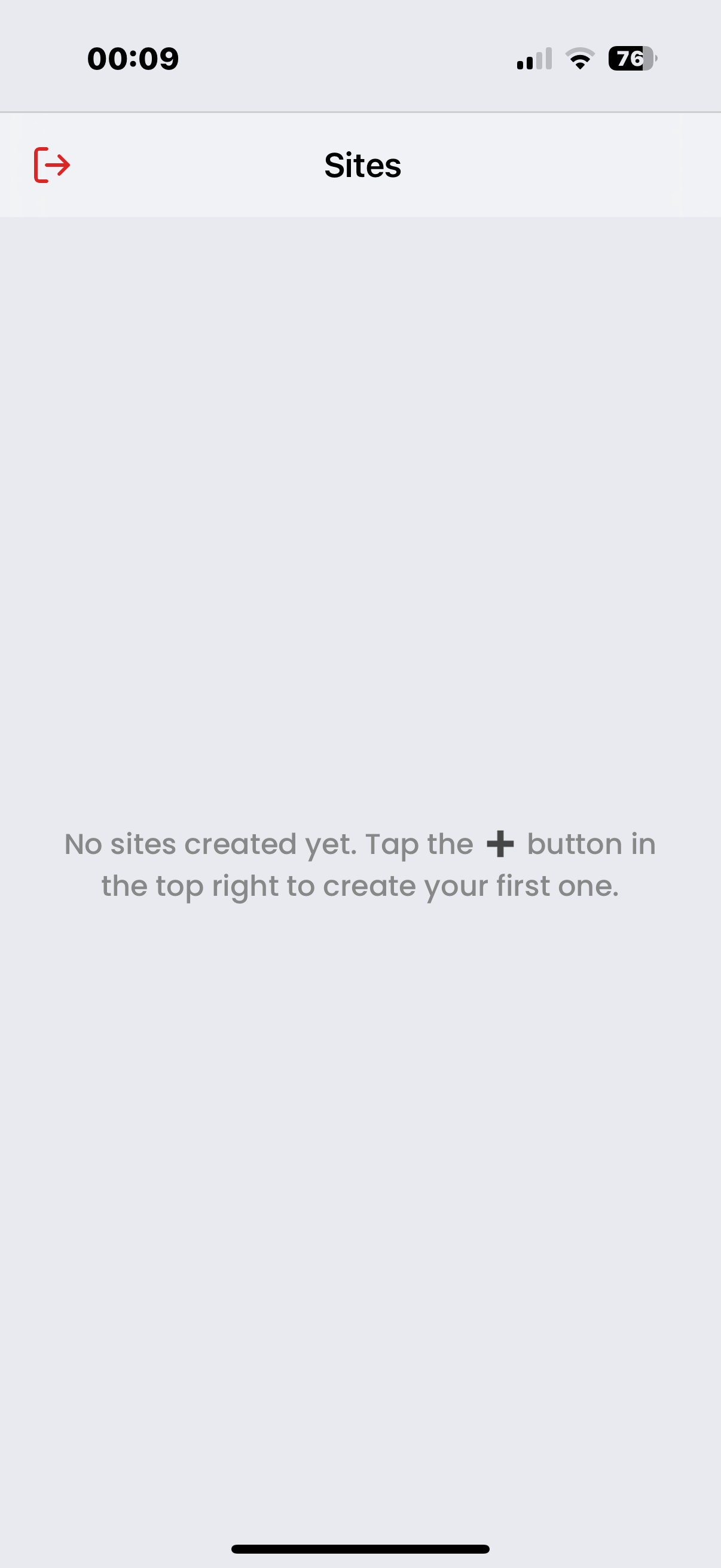
  • Open the GatEvo App on your iPhone
  • Tap + (top-right) on the Sites screen
  • Enter a Site Name (e.g., customer name or location)
  • Tap Save and open the newly created site
Step 02 Add a Device
  • Go to Devices inside the site
  • Tap the + button (top-right)
  • Select Manual Search
Step 03 Search and Select Device (BLE)
  • Ensure the GatEvo unit is powered ON
  • Enable Bluetooth on your phone
  • Match the Serial Number with the label on the unit
  • Tap the correct device from the list
Step 04 Name the Device
  • Enter a clear device name
  • e.g., Main Gate, Sliding Gate, Door, Barrier
  • Tap Add Device to confirm
Step 05 CRITICAL: Refresh Bluetooth (iPhone Only)
  • Tap "Open Settings" when prompted
  • In iPhone Settings → Bluetooth: turn OFF
  • Wait 2–3 seconds, then turn Bluetooth back ON
  • Return to the GatEvo App
Step 06 Return to App After Bluetooth Refresh
  • After toggling Bluetooth OFF/ON in Settings, return to the app
  • The app will now establish a proper Bluetooth connection
  • Required for the iOS Bluetooth stack to work correctly
Step 07 Test Bluetooth Control
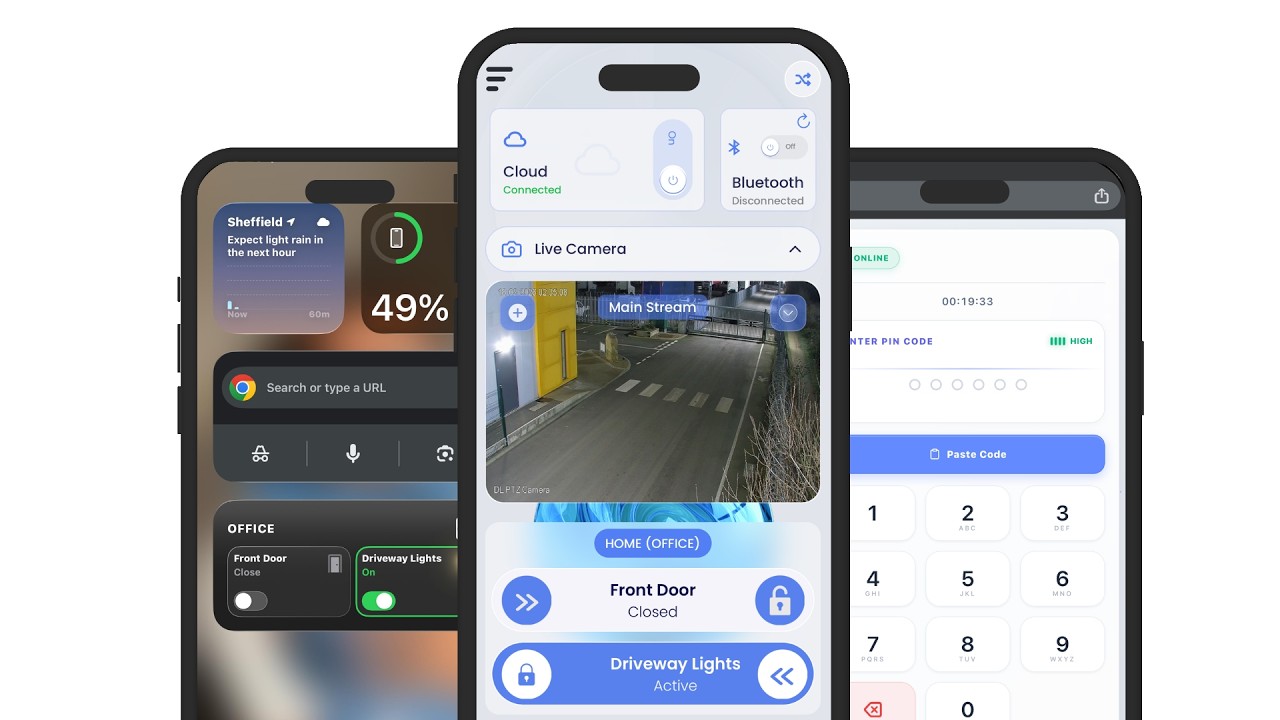
  • Confirm Bluetooth shows Connected on the Control screen
  • If disconnected, tap the Bluetooth panel to reconnect
  • Swipe the Control buttons to send triggers
  • Confirm the gate/door responds properly
Step 08 Open Device Settings
  • Tap Settings on the bottom menu bar
  • Select Network settings to proceed
Step 09 Select Connection Type & Scan Networks
  • Choose connection type: Wi-Fi / Ethernet / Cellular
  • For Wi-Fi: select the Wi-Fi option
  • Tap Scan Networks to find available networks
Step 10 Choose Wi-Fi Network
  • Tap the required Wi-Fi from Available Networks list
  • Prefer Good/Excellent signal strength
  • Check signal bars before selecting
Step 11 Connect and Enable Cloud
  • Enter the Wi-Fi password carefully and tap Connect
  • Wait ~10 seconds for the connection to establish
  • Toggle Enable Cloud Connection ON
  • Accept the terms and conditions when prompted
Step 12 Enable Cloud Control
  • Return to the Control screen
  • Tap the Cloud power button to enable cloud control
  • Confirm status shows "Cloud Connected"
  • Setup complete — device is now cloud-enabled!

Installer Tips

Best Practices For A Smooth Setup Every Time

1

Test via Bluetooth first, then enable Cloud

2

ALWAYS do the iPhone Bluetooth OFF/ON refresh from Settings (NOT Control Center) on first setup

3

Use stable internet at the gate location for reliable cloud access

4

Bluetooth is mainly for setup and local servicing

5

Verify signal strength before selecting a Wi-Fi network

Installer Tips

Best Practices For A Smooth Setup Every Time

1

Test via Bluetooth first, then enable Cloud

2

ALWAYS do the iPhone Bluetooth OFF/ON refresh from Settings (NOT Control Center) on first setup

3

Use stable internet at the gate location for reliable cloud access

4

Bluetooth is mainly for setup and local servicing

5

Verify signal strength before selecting a Wi-Fi network

FAQ

Frequently Asked Questions

01.

Can GatEvo be installed inside a metal control panel?

Yes. Just use the external antenna ports for extended Wi-Fi/Bluetooth.

02.

How does it help with fault finding?

GatEvo Connect AI records full accurate input/output state diagnostics transparent logs accessible natively inside standard dashboards structure.

03.

Can it be used on commercial and residential gates?

Yes, absolutely logic configurations cover light-usage single-family frames or heavyweight high-output commercial entrances securely.

04.

Can the device integrate with lights and alarms?

Yes, triggers multiple linked outputs together covering sequential secondary scene triggers safety buffers natively.

05.

Do you provide leads to your approved installers?

Yes, verified engineers receive proximity-location support leads through straightforward transparent operator maps setups.

06.

Can I get training?

Yes, dedicated technician guide framing covering absolute configurations offset setup faithfully guides engineering frameworks natively.